
 By BSTeam
 Multi-Factor Authentication (MFA) has become one of the most important security layers in modern digital banking. Banks now use multiple identity verification systems to protect customers against account takeover attacks, phishing attempts, and unauthorized financial access.
Kotak Mahindra Bank uses several security layers inside its Net Banking and mobile banking systems, including:
- Dynamic Access Codes (DAC)
- Mobile app approval authentication
- MPIN verification
- OTP validation
- Device-based authentication
- Physical security token systems for selected users
However, many customers eventually face situations where they forget, lose, or accidentally desynchronize these multi-factor authentication keys. When this happens, login access may become blocked completely.
Here is a complete guide to safely resetting forgotten Kotak Net Banking multi-factor keys.
Why Multi-Factor Keys Stop Working
MFA systems depend heavily on synchronization between the user device and the bank’s authentication servers.
Problems usually happen because of:
- Mobile app deregistration
- Device change
- Incorrect phone time settings
- Software updates
- Factory reset of the phone
- Expired session tokens
- Physical token failure
- Too many incorrect attempts
In many cases, the banking system automatically interprets repeated failed verification attempts as suspicious activity and temporarily locks the account for protection.
Common Symptoms of MFA Key Problems
Users commonly report:
- OTP not arriving
- Dynamic Access Code rejection
- Endless login loop
- “Authentication Failed” messages
- Mobile app approval not appearing
- Invalid token errors
- Session expiration during login
- Account temporarily locked
These issues are especially common after switching phones or reinstalling the banking app.
Main Technical Causes Behind the Problem
Time Synchronization Drift
Software-based authentication systems rely on exact time matching between the device and bank server.
Even small clock mismatches can invalidate generated security codes.
Device Binding Failure
Banking apps often create encrypted cryptographic bindings between:
- Device hardware
- Customer Relationship Number (CRN)
- Banking session credentials
Changing or resetting the device can break this link.
Expired Authentication Sessions
Inactive or partially verified login sessions sometimes corrupt stored authentication tokens.
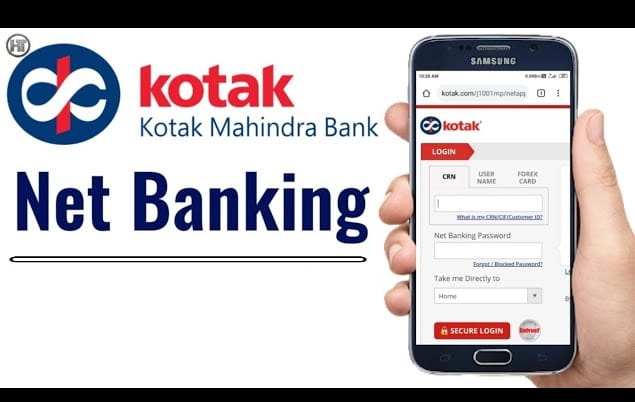
Method 1: Reset MFA Keys Through Kotak Net Banking
Open the Official Kotak Login Portal
Visit the official Kotak Net Banking website and enter:
- CRN
- Username
- Debit card details
Never use links received through SMS, WhatsApp, or unknown emails.
Select “Forgot Password / Reset Security Options”
Instead of repeatedly attempting failed logins, choose the recovery option available on the portal.
This begins the secure identity recovery workflow.
Complete Mobile and Email Verification
The system usually sends verification codes to:
- Registered mobile number
- Registered email address
Enter both codes carefully inside the secure verification screen.
Verify Identity Using Card Details
Users may need to enter:
- Debit card number
- Expiry date
- CVV
- ATM PIN
Some customers may also answer security questions linked to their profile.
Reset Multi-Factor Authentication Setup
After successful verification, users can:
- Reset MFA profile
- Register new device authentication
- Create fresh security credentials
- Re-establish mobile approval setup
This removes the broken authentication link from the old device.
Method 2: Reset Mobile MPIN Through SMS
If the mobile banking app remains inaccessible, users may reset the mobile MPIN separately.
Send SMS Request
From the registered mobile number:
- Type: MPIN
- Send to: 5676788
The bank usually replies with a secure temporary reset link.
Complete Identity Verification
The secure page may request:
- Date of Birth
- PAN details
- Mother’s Maiden Name
- OTP verification
These checks confirm ownership of the account.
Create a New MPIN
After successful verification, users can create a new 6-digit MPIN linked to the current device.
Important Device Settings to Check
Enable Automatic Network Time
Incorrect phone time settings commonly break MFA synchronization.
Enable:
- Automatic date and time
- Network-provided time
- Automatic timezone
This improves authentication accuracy.
Disable Battery Optimization for Banking Apps
Some phones aggressively suspend background banking services.
Disable battery optimization for:
- Kotak mobile app
- Notification services
- Authentication modules
This helps approval requests arrive properly.
What If the Account Gets Locked?
Too many failed attempts may trigger temporary security lockouts.
In such cases:
- Wait 12–24 hours
- Avoid repeated login attempts
- Retry carefully later
- Contact official customer support if needed
Banks use cooling periods to protect accounts from brute-force attacks.
Important Security Warning
Customers should remain extremely cautious about phishing scams.
Fraudsters often pretend to offer:
- MFA synchronization help
- Security reset support
- Remote banking recovery
- OTP troubleshooting
Never share:
- ATM PIN
- CVV
- OTP
- MPIN
- Net Banking password
Kotak representatives do not ask for these details through calls or unofficial chats.
Final Thoughts
Resetting forgotten Kotak Net Banking multi-factor keys usually involves secure identity verification, device re-registration, and fresh authentication setup through official banking recovery workflows. Most issues happen because of device changes, time synchronization problems, expired sessions, or app reinstallation.
Customers should always use official Kotak portals, maintain correct phone settings, and avoid repeated failed login attempts to prevent temporary account lockouts.
FAQs
Q: Why is my Dynamic Access Code not working?
A: Incorrect device time or token synchronization problems commonly cause DAC failures.
Q: Can changing phones break MFA authentication?
A: Yes. Device changes often invalidate existing authentication bindings.
Q: What should I do if OTPs are not arriving?
A: Check mobile network signal, SMS permissions, and registered mobile number status.
Q: Is the MPIN reset through SMS safe?
A: Yes, if performed through official Kotak banking numbers only.
Q: Can battery saver mode affect banking authentication?
A: Yes. It may block app notifications and approval requests.
Q: What happens after too many failed login attempts?
A: The account may temporarily lock itself for security protection.
Q: Should I share ATM PIN or CVV during MFA recovery?
A: No. Legitimate bank support never asks for confidential credentials directly.
Q: Can I reset MFA without visiting the branch?
A: In most cases yes, provided identity verification succeeds through official online recovery systems.
 Meghna Sharma